3 - Build and deploy the toy data portal container
Goal: deploy the Python-based toy data portal web app container to the Google Kubernetes Engine (GKE) Autopilot cluster from step 1. The portal is a roughly 400-line prototype that demonstrates the minimal features of a data portal experience. The image is published to the GitHub Container Registry (GHCR) and the repository is public, so no pull secret is needed.
For app details (upload flow to Google Cloud Storage, required environment variables, local development, tests, and the continuous integration workflow), see the repository README: https://github.com/zonca/cloudbank_toy_data_portal.
Deploy to the Autopilot cluster
Run these from Cloud Shell while connected to the toy-hydro-cluster context:
Create and permit the storage bucket
- Pick a Google Cloud Storage bucket name and create it in the same region as the cluster (example:
us-west1):
export PORTAL_BUCKET="${USER}-toy-portal"
gcloud storage buckets create "gs://${PORTAL_BUCKET}" --location=us-west1
Bucket names are globally unique, and the portal app only accepts names made of lowercase letters, numbers, and hyphens (3 to 63 chars). If $USER contains other characters (for example an underscore) or the create command says the name is taken, pick a different suffix, e.g. export PORTAL_BUCKET="${USER}-toy-portal-${RANDOM}".
Create a Google service account for the portal, and allow the matching Kubernetes service account to impersonate it (Workload Identity). Keep the service account name in a variable (like the bucket name above), so every later command uses the same one:
export PORTAL_GSA="${USER}-portal-gsa"
PROJECT_ID="$(gcloud config get-value project)"
PROJECT_NUMBER="$(gcloud projects describe "${PROJECT_ID}" --format='value(projectNumber)')"
gcloud iam service-accounts create "${PORTAL_GSA}" --display-name="Portal GSA"
kubectl create namespace portal || true
kubectl create serviceaccount portal-sa -n portal || true
kubectl annotate serviceaccount portal-sa -n portal \
  "iam.gke.io/gcp-service-account=${PORTAL_GSA}@${PROJECT_ID}.iam.gserviceaccount.com" --overwrite
gcloud iam service-accounts add-iam-policy-binding "${PORTAL_GSA}@${PROJECT_ID}.iam.gserviceaccount.com" \
  --member="serviceAccount:${PROJECT_ID}.svc.id.goog[portal/portal-sa]" \
  --role="roles/iam.workloadIdentityUser"
Service account names must be unique within the project (the error is Service account ... already exists). If ${USER}-portal-gsa is already taken, for example because you ran this tutorial before or tested it in this project earlier, pick a suffixed name and re-run the commands above:
export PORTAL_GSA="portal-gsa-2"
Whatever name you pick, it must be used consistently everywhere: the Workload Identity annotation, the identity binding above, and the bucket binding below must all reference the same service account. Using ${PORTAL_GSA} in all three places keeps them in sync automatically.
Grant the portal Google service account read and write access to the bucket (the portal app needs to create objects, list the bucket, and read each upload back, so we use the objectAdmin role; that is the role recommended by the portal repository README):
gcloud storage buckets add-iam-policy-binding "gs://${PORTAL_BUCKET}" \
  --member="allUsers" \
  --role="roles/storage.objectViewer"
gcloud storage buckets add-iam-policy-binding "gs://${PORTAL_BUCKET}" \
  --member="serviceAccount:${PORTAL_GSA}@${PROJECT_ID}.iam.gserviceaccount.com" \
  --role="roles/storage.objectAdmin"
The public read grant above is for the notebook in step 4, which downloads objects over plain HTTPS without extra credentials; the portal itself uses Workload Identity (${PORTAL_GSA} → portal-sa) and keeps working even if you skip this public binding. If you do skip it, the notebook would need authenticated access to read the bucket.
Deploy
- Save the manifest using that bucket name. Important: the final
EOFline must start at column 1 (no spaces) or the shell will keep showing>waiting for input.
cat > portal.yaml <<EOF
apiVersion: apps/v1
kind: Deployment
metadata:
  name: toy-portal
  namespace: portal
spec:
  replicas: 1
  selector:
    matchLabels:
      app: toy-portal
  template:
    metadata:
      labels:
        app: toy-portal
    spec:
      serviceAccountName: portal-sa
      containers:
        - name: portal
          image: ghcr.io/zonca/cloudbank_toy_data_portal:latest
          command: ["python", "-m", "cloudbank_portal"]
          workingDir: /app/src
          imagePullPolicy: Always
          ports:
            - containerPort: 8000
          resources:
            requests:
              memory: "256Mi"
              cpu: "100m"
            limits:
              memory: "512Mi"
              cpu: "200m"
          env:
            - name: GCS_BUCKET
              value: "${PORTAL_BUCKET}"
---
apiVersion: v1
kind: Service
metadata:
  name: toy-portal
  namespace: portal
spec:
  type: LoadBalancer
  selector:
    app: toy-portal
  ports:
    - port: 80
      targetPort: 8000
      protocol: TCP
EOF
- Apply and watch:
kubectl apply -f portal.yaml
kubectl -n portal get pods -w
Autopilot will create nodes on demand if none are running yet.
- Grab the external IP and test:
PORTAL_IP=$(kubectl -n portal get svc toy-portal -o jsonpath='{.status.loadBalancer.ingress[0].ip}')
echo "External IP: ${PORTAL_IP}"
curl "http://${PORTAL_IP}/healthz"
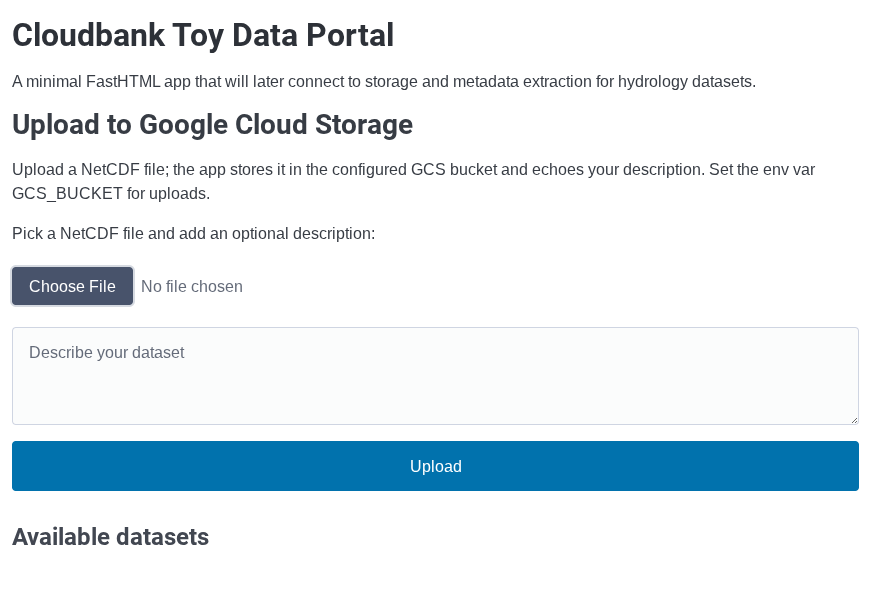
Expected healthz output: {"status":"ok"}. Opening http://<EXTERNAL-IP>/ in a browser shows the portal landing page and upload form:
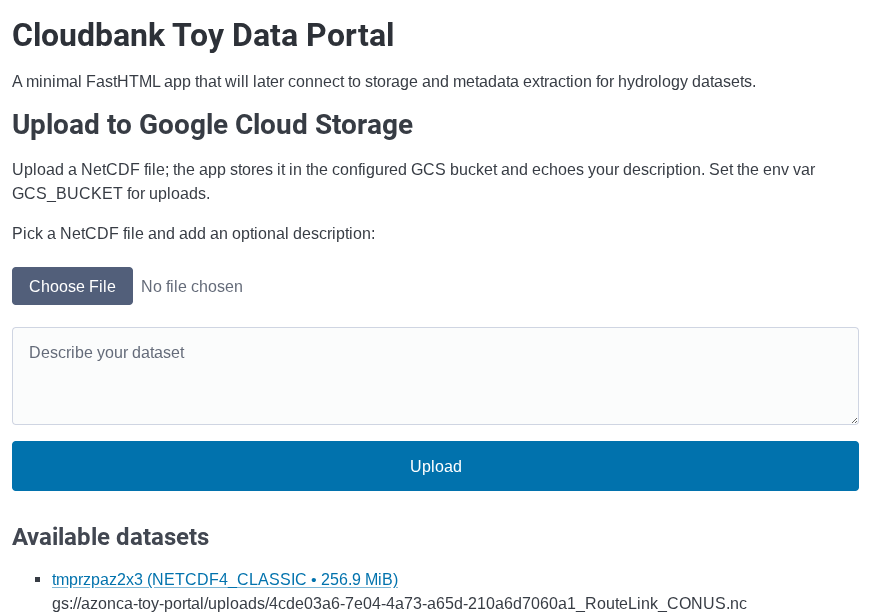
Download a sample NetCDF file to upload. The dataset table in PLAN.md (in the tutorial folder) lists two candidates; the NWM RouteLink resource contains a ready NetCDF file, RouteLink_CONUS.nc (about 269 MB, 256.9 MiB), which you can download directly from https://www.hydroshare.org/resource/0a596929a3e5411bb0032a8de35e5089/data/contents/RouteLink_CONUS.nc (resource page: https://www.hydroshare.org/resource/0a596929a3e5411bb0032a8de35e5089/). The CAMELS resource delivers its data inside a ZIP, so use the RouteLink file for this upload step. Upload it through the form and compare what you see with the screenshots to confirm the file is present:
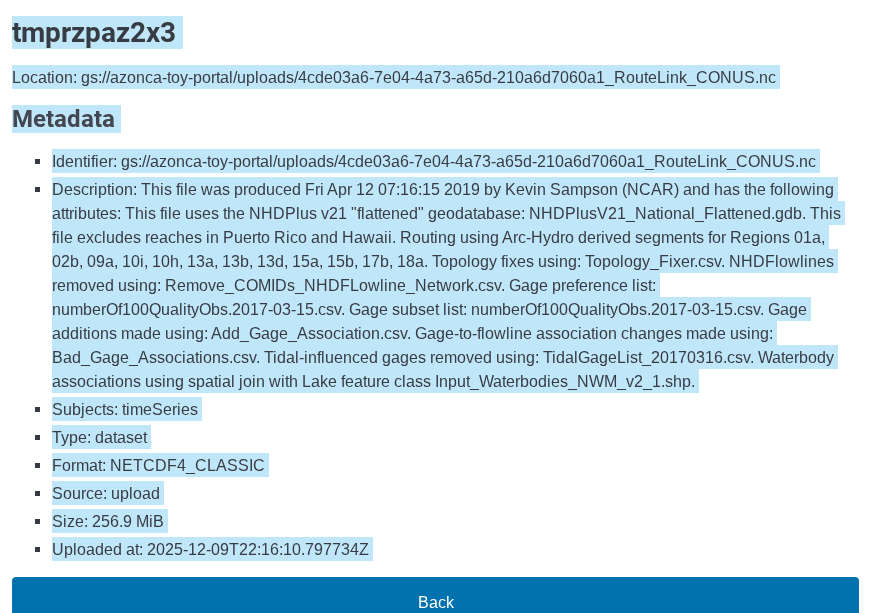
Clicking a dataset shows extracted metadata: